
How to Sync Orders Between SAP Business One and ShipStation
Connex Ecommerce connects SAP Business One with ShipStation to automate order fulfillment, eliminate duplicate data entry, and keep your sales and shipping information synchronized.
With our two-way integration, you can send sales orders from SAP Business One to ShipStation and automatically return shipping details, tracking numbers, and shipping costs to SAP Business One after orders ship.
How does the two-way sync work?
Connex supports communication in both directions:
SAP Business One → ShipStation
Create a sales order in SAP Business One. Connex sends the order to ShipStation, where your warehouse team can pick, pack, and ship it.
ShipStation → SAP Business One
After the order ships, Connex retrieves shipment information from ShipStation and updates the corresponding SAP Business One transaction.
This eliminates the need to manually enter orders into ShipStation or copy tracking numbers back into SAP Business One.
Step 1: Create a sales order in SAP Business One
Start by creating a sales order in SAP Business One.
- Open SAP Business One.
- Navigate to Sales – A/R → Sales Order.
- Select an existing customer.
- Enter the products, quantities, and prices.
- Verify the shipping address and requested delivery date.
- Save the sales order.
For example, you might create sales order 10245 for a customer ordering five products.
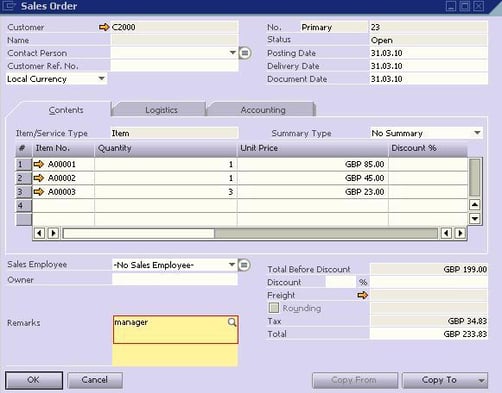
The sales order contains the information Connex needs to create the corresponding order in ShipStation, including customer details, product SKUs, quantities, prices, and shipping information.
Step 2: Configure Connex to sync orders to ShipStation
Once your SAP Business One and ShipStation accounts are connected to Connex, configure the order synchronization.
- Log in to Connex Ecommerce.
- Add or select your ShipStation connection.
- Choose the option to sync orders from SAP Business One to ShipStation.
- Select the destination ShipStation store.
- Configure which SAP Business One orders should synchronize.
- Save your settings.
Connex can synchronize eligible orders during its scheduled synchronization process.
You can configure the integration to send all eligible sales orders or only orders matching specific conditions.
For example, you might synchronize orders assigned to a particular warehouse, shipping method, or customer group.
Step 3: View your SAP Business One orders in ShipStation
After Connex synchronizes the sales order, the order appears in your selected ShipStation store.
Your fulfillment team can see the order information without manually reentering it.
Depending on your configured field mappings, this can include:
- Sales order number
- Customer name
- Shipping address
- Product SKUs and descriptions
- Item quantities and prices
- Requested shipping service
- Customer purchase order number
- Order notes
Your warehouse team can then process the order using its normal ShipStation workflow.
Step 4: Ship the order in ShipStation
Once the order is ready for fulfillment:
- Open the order in ShipStation.
- Verify the shipping address and order items.
- Select the carrier and shipping service.
- Create and print the shipping label.
- Complete the shipment.
ShipStation records the shipment details, including the carrier, tracking number, ship date, and label cost.
For example:
| Field | Example |
|---|---|
| Order Number | 10245 |
| Carrier | UPS |
| Shipping Service | UPS Ground |
| Tracking Number | 1Z999AA10123456784 |
| Shipping Date | November 19, 2026 |
| Shipping Cost | $12.50 |
Step 5: Update SAP Business One after shipment
After an order ships, Connex retrieves the shipping details from ShipStation and sends them back to SAP Business One.
Depending on your configuration, Connex can return:
- Tracking number
- Shipping carrier
- Shipping service
- Shipment date
- Shipping cost
For example, when sales order 10245 ships through UPS Ground, Connex matches the shipment to the original SAP Business One order using the configured order identifier.
The shipment details can then be recorded against the corresponding SAP Business One transaction.
Important: The exact destination for tracking information and shipping costs depends on your SAP Business One configuration and the integration's supported update workflow.
Can I sync tracking numbers without changing the order total?You may want to record shipment information in SAP Business One without passing the actual carrier shipping cost to the customer.
For example, your company might offer free shipping or charge customers a fixed shipping fee.
Connex supports two shipping-update approaches in its existing QuickBooks integration:
Tracking information only
Return the tracking number, carrier, and shipping date without adding the carrier's shipping cost.
Shipping cost and tracking information
Return the shipping details and the carrier shipping cost for use in the accounting workflow.
The corresponding SAP Business One behavior and supported destination fields should be confirmed during integration setup.
How do fields map between SAP Business One and ShipStation?
The following table illustrates the intended field mappings for a typical integration.
| SAP Business One | ShipStation |
|---|---|
| Sales Order Number (DocNum) | Order Number |
| Posting Date (DocDate) | Order Date |
| Customer Name (CardName) | Customer Name |
| Customer Reference Number (NumAtCard) | Custom Field |
| Ship-To Address | Ship To Address |
| Item Code (ItemCode) | SKU |
| Item Description (Dscription) | Item Name |
| Quantity | Quantity |
| Unit Price | Unit Price |
| Tax Amount | Tax Amount |
| Shipping Method | Requested Shipping Service |
| Order Comments | Internal Notes |
| Warehouse Code (WhsCode) | Warehouse-related mapping, if configured |
These are illustrative mappings. Actual availability depends on the SAP Business One integration and ShipStation's supported fields.
Can I sync orders from a specific warehouse?
SAP Business One supports warehouse assignments on sales order lines.
For companies operating multiple warehouses, Connex can use order information and configurable rules to determine which orders should be sent to ShipStation.
For example, you may want to send orders from your main warehouse to one ShipStation store and orders from another warehouse to a different fulfillment workflow.
Warehouse selection and routing should be configured according to your fulfillment requirements.
Can I sync partially shipped orders?
Businesses frequently ship orders in multiple packages or fulfill products at different times.
For example, a customer orders ten products, but only six are available for immediate shipment.
ShipStation may process the available products first and ship the remaining products later.
SAP Business One supports partial deliveries and document relationships between sales orders and deliveries.
The handling of multiple ShipStation shipments, remaining quantities, and SAP Business One delivery documents must be configured and validated for the integration.