
Does it work?
Yes, Connex works with Ace Cloud Hosting. Our software uses the QuickBooks Web Connector, which is included with QuickBooks. No programs are installed on the computer, which makes setup much simpler.
When is it a good time to buy Ace Cloud Hosting?
Here are the best times:
- Multiple users need access to QuickBooks Enterprise
QuickBooks Enterprise is running on a single local computer, often belonging to the accountant or business owner, but multiple employees need reliable access to the company file. - The customer requires reliable automatic syncing
Connex needs access to QuickBooks for scheduled syncing, but the QuickBooks computer is turned off, unavailable, or not consistently logged in. This can interrupt order and inventory syncing. For example, website inventory can become outdated while the QuickBooks machine is unavailable. - The customer wants a "set it and forget it" environment
Some customers are uncomfortable managing the computer, keeping it available, or manually checking/running synchronization. A hosted environment can remove some of that operational burden.
What are the prerequisites?
Here is a list:
1. Dedicated Private Server
You need a private server. Shared servers often log out idle sessions after 2–3 minutes, which stops background syncs. After log out, the sync cannot run.
2. Dedicated Connex User
Create a new user with permissions just for Connex. This prevents another team member from accidentally logging in with the sync account. If you pair as admin and another user is logged in as admin, the sync will fail. For more info, read this guide.
What are the configuration requirements?
Here are the steps:
1. Allow Automatic Login
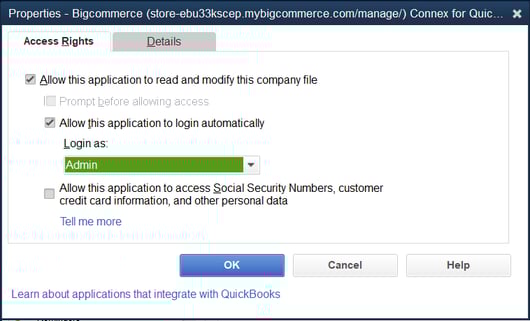
You must allow the web connector to login automatically. Check if automatic login is selected:
- In QuickBooks, go to edit > preferences > integrated applications.
- Next to Connex, click properties.
- Click allow application to login automatically:
2. Keep Web Connector Open
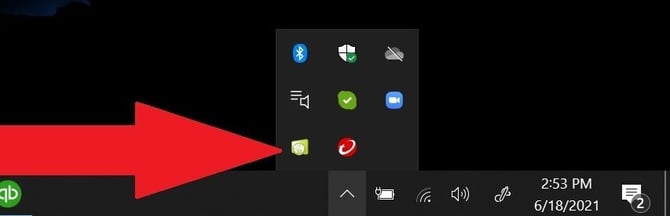
Web Connector must remain running in the background on your Ace Cloud session:
Locate the Web Connector icon in your Windows system tray (bottom-right taskbar arrow).
Important: Click Hide (or minimize), never click the X (Close) button. Closing the application stops all automated sync tasks.
3. Company File Path
In Connex, update your company file path. If QuickBooks is closed, then Connex must know the file path. For more info, read this guide.