Introduction
Many QuickBooks Canada customers sell in the United States. These companies must pay tax. At Connex, we recommend creating a specific tax code.
What are the steps?
Create a tax rate and create a Connex rule.
Step 1: Create a California Tax Agency and Rate
- Go to Taxes in the left-hand navigation menu. (Go to https://qbo.intuit.com/app/tax/manage)
- Click on Manage Sales Tax.
- Select Add tax.
- Choose Add custom rate instead of selecting a province.
- Fill out the details:
- Tax Name: Enter
California Sales Taxor a specific code likeCA ST. - Agency Name: Type
California Department of Tax and Fee Administration (CDTFA)or create a simplified agency profile. - Rate: Enter the applicable percentage (e.g., California's base state rate is 7.25%, though local district taxes vary).
- Account: Link it to your Sales Tax Liability tracking account.
- Tax Name: Enter
Step 2: Create Rules in Connex
You need to write rules saying map order item, shipping and discount taxes for California. Here are the steps:
- In Connex, click rules engine.
- Click add new rule.
- Choose rule without an order number.
- In the name field, enter CA order item tax.
- In the action, choose map tax code on order items.
- In conditions, enter Shipping State, Equals, CA.
- In the last text box, enter CA ST.
- Perform the same steps. For the action, enter map shipping line tax code and map tax code on discount.
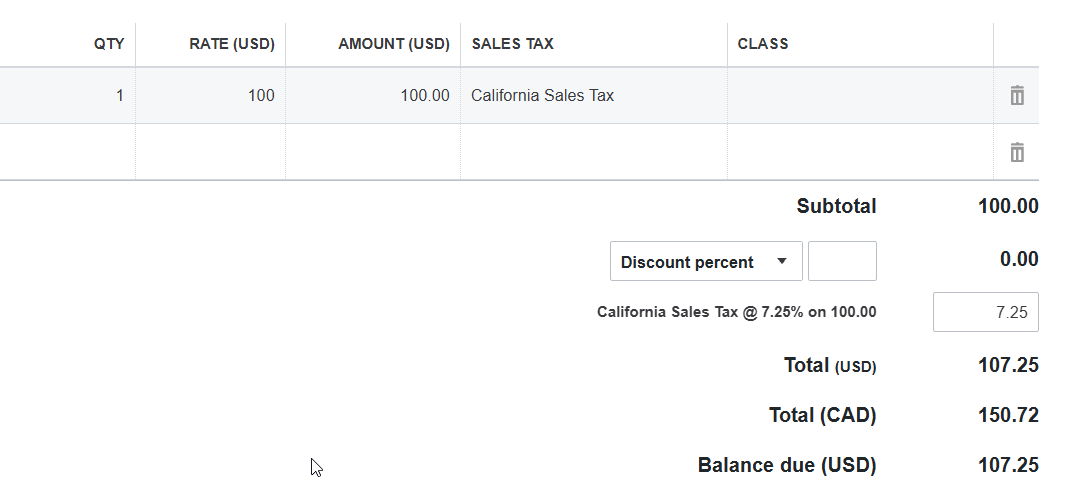
Here is an example sale in QuickBooks: