
Problem
You see receiveResponseXML failed on the web connector.
Solution
Enable verbose logging and send us the log. Send the log to our support. Open your web connector. Click file > clear log. Follow these steps.
To enable verbose logging for the QuickBooks Web Connector (QBWC) in QuickBooks Enterprise, follow these steps:
🧩 Step 1: Locate the Web Connector Configuration File
- Navigate to the folder where the Web Connector is installed.
The default path is usually: - C:\Program Files (x86)\Common Files\Intuit\QuickBooks\QBWebConnector
- Look for a file named QWCLOG.TXT — this is where log entries are stored.
⚙️ Step 2: Enable Verbose Logging via Windows Registry
⚠️ Important: Editing the Windows Registry should be done carefully — make a backup first.
- Press Win + R, type regedit, and press Enter.
- Navigate to:
- HKEY_CURRENT_USER\Software\Intuit\QBWebConnector
- Find level.
- The default value is DEBUG or INFO. Enter VERBOSE
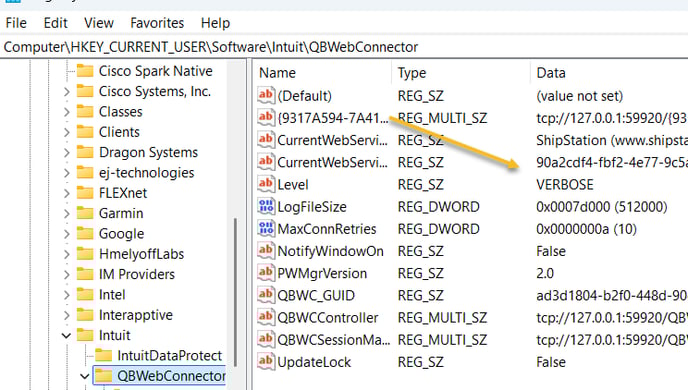
🔁 Step 3: Restart the Web Connector
- Close the QuickBooks Web Connector if it’s open.
- Reopen it — you’ll now see more detailed log entries in:
- C:\ProgramData\Intuit\QBWebConnector\log
or (for older versions):
C:\Program Files (x86)\Common Files\Intuit\QuickBooks\QBWebConnector\QWCLOG.TXT
Send the log to our support team. Change the registry key to DEBUG again.