Introduction
Systems like Odoo, Sage Business Cloud Accounting and QuickBooks Online allow you to map tax codes on line items. In the United States, the entire order has a single code. Outside the United States, different products can have different tax codes.
In these examples, tax codes appear on the line items. Y0u need to use the Connex rules engine to map the codes.
Is there a demo?
Here is a demo:
How do I set up customers?
If you sell B2C, we recommend one customer per currency code. If you sell B2B, it is OK to have individual customers.
In this example, we sell in USD, EUR and GBP. Here are the steps to set up customers per currency code:
- In QuickBooks Online, go to customers.
- Create a customer.
- In the display name as field, enter USD Customers.
- Under default currency code, enter the currency code USD.
- Perform the same steps for EUR and GBP.
- Perform the same steps for each currency.
- In Connex, go to settings > customer match.
- Enter billing company name last name, first name as the match.
- In Connex, click rules engine.
- Upload this spreadsheet. This will map to USD Customers, GBP Customers and EUR customers.
How do I map tax codes based on the shipping address country code?
If you use QuickBooks Online, we recommend uploading a spreadsheet of tax codes. Alter the spreadsheet with the tax code name. There are three times of mappings:
- Download - Map Discount Tax Codes: If there is a discount, this is the tax code.
- Download - Map Shipping Tax Code: If there is a shipping amount, this is the tax code.
- Download - Map Order Item Tax Code: For every product on the sale, this is the tax code.
Taxes are mapped by shipping address country. Once complete, go to the Connex rules engine. Click the upload button on the right of the grid. Upload the spreadsheet.
If you wish to add a new rule in the future, follow these steps:
Here are the steps:
- Login to Connex.
- Click rules engine.
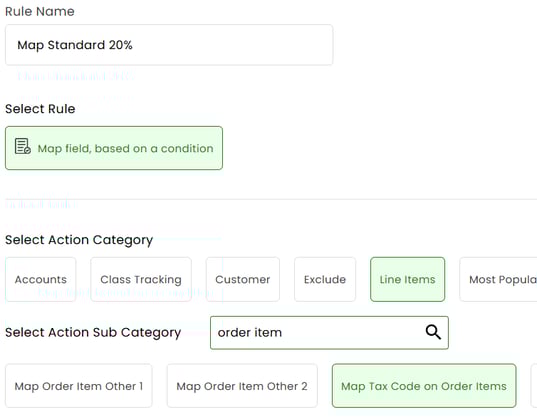
- Click add new rule.
- Scroll to the bottom and select write rule without order number.
- In the title, enter the title of the rule like Standard 20%.
- As the action, choose map order item tax code:
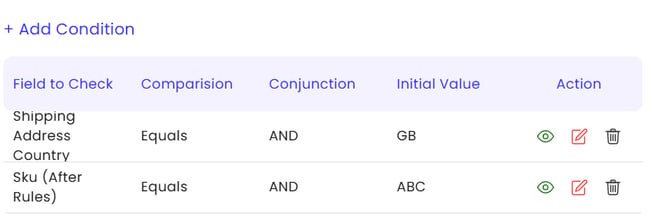
- In conditions, enter these values: Shipping Country, Equals, GB.
- In the map to, enter 20% Standard.
- Click submit.
Can I map tax codes, based on a product SKU?
Yes, under conditions add another row: Product SKU, Equals, (ENTER SKU)