![Connex_Logo_HelpCenter_100h.png]](https://help.connexecommerce.com/hs-fs/hubfs/Connex_Logo_HelpCenter_100h.png?height=50&name=Connex_Logo_HelpCenter_100h.png)
Introduction
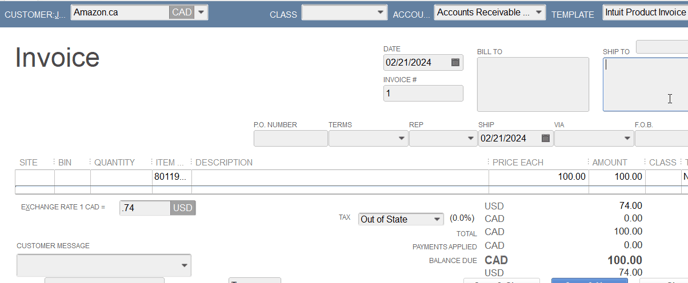
In this example, the QuickBooks home currency is USD. An order from Amazon.ca has imported to QuickBooks.
Adjust Connex Settings
Here are the steps:
- Login to Connex.
- Go to settings.
- Go to order setting > transaction type.
- Check use multi-currency.
Turn on Multicurrency in QuickBooks Desktop
Here are the steps:
- Go to the Edit menu, then select Preferences.
- Select Multiple Currencies.
- Go to the Company Preferences tab, then select Yes, I use more than one currency.
- From the drop-down, select your home currency.
Create Customers in QuickBooks
If the customer is missing and if the order contains a currency code, then Connex will create the customer. For demo purposes, here is how it appears:
- Go to customer center.
- Create a new customer.
- Enter CAD as the code.
- Enter Amazon.ca as the customer:

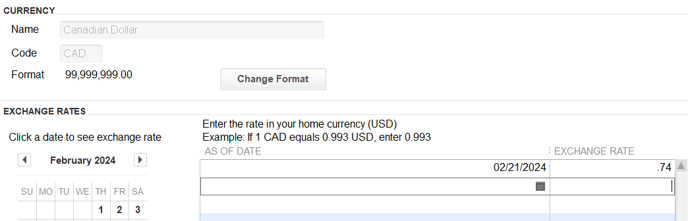
Add an exchange rate
Here are the steps:
- Go to the Edit menu, then select currency.
- Select CAD.
- Enter an exchange rate:
Sync order
Sync an order to QuickBooks. Here is the end result: