![Connex_Logo_HelpCenter_100h.png]](https://help.connexecommerce.com/hs-fs/hubfs/Connex_Logo_HelpCenter_100h.png?height=50&name=Connex_Logo_HelpCenter_100h.png)
How do fields match?
We match the QuickBooks customer email to the HubSpot contact email field. If there is no match, then Connex will make new customers. If you wish to use another field to match, please contact support.
Here is a list of fields:
| QuickBooks | HubSpot |
| Billing and shipping address | Can be mapped to HubSpot custom fields. Contact our support. |
| Contact first and last name | Contact first and last name |
| Contact email | |
| Phone | Phone |
| Company | Company |
| Line Item Name | Product SKU, line item on deal |
| Line Item Quantity | Line item quantity |
| Order Date | Deal Date |
| Discount | Line item discount |
Create Order in QuickBooks
Here are the steps:
- In QuickBooks Enterprise, go to customer center.
- Click a customer.
- Click new transaction and choose an invoice or sales order.
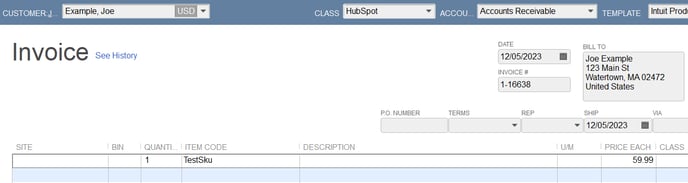
- Create a new order with a class called HubSpot. This will tell Connex to sync the order from QuickBooks to HubSpot:
Sync order
Next, instruct Connex to sync orders from QuickBooks to HubSpot.
- Log into Connex.
- Click settings > HubSpot > orders from QuickBooks.
- Check the box to enable the sync.
- Select the type of sales you want to sync, like invoices.
- Click advanced.
- Choose HubSpot as the class.
- As the dates, choose yesterday and tomorrow.
- Click submit.
- Run your web connector.