![Connex_Logo_HelpCenter_100h.png]](https://help.connexecommerce.com/hs-fs/hubfs/Connex_Logo_HelpCenter_100h.png?height=50&name=Connex_Logo_HelpCenter_100h.png)
Problem
Your sales order remains open, even though Connex synced an invoice.
Description
QuickBooks will not close a sales order if one of the lines includes a Sales Tax Item. This is a common occurrence when Add tax as a line item is selected in the automatic mapping section of sales tax settings.
Solutions
#1 Map QuickBooks tax codes
- In Connex, go to sales tax. Disable the Add tax as a line item setting in the automatic mapping section of sales tax settings.
- Use Manual Mapping to apply tax codes by either uploading a .CSV file or entering individual codes.
For additional information:
- The following article provides details on mapping tax codes: How Should I Map Tax?
- Connex also supports grouped tax code: Do You Support QuickBooks Grouped Tax Codes
#2 Create sales tax as a service item
- In Connex, enable the Add tax as a line item setting in the automatic mapping section of sales tax settings.
- Find the Sales Tax Item in your QuickBooks file that matches this naming convention. Change the name of this Sales Tax Item to something else (eg, ShopifyTaxOLD).
- Recreate SalesTax a service item:
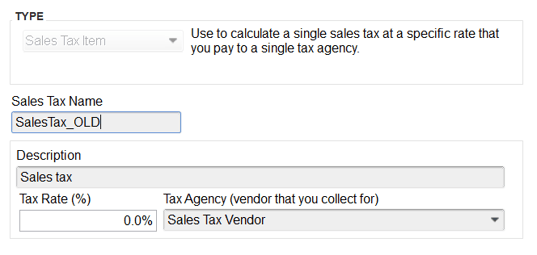
- Create a new Service Item called SalesTax:
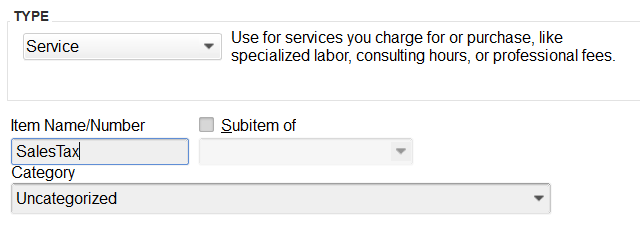
- Now create a new liability account (you can call it whatever you want). Assign this liability account to the new Service Item. This option allows you to import sales tax as a line item without using a Sales Tax Item in the line.
- The sales tax amount will apply to the liability account. We recommend using journal entries to manage debit sales tax income and credit sales tax payable, on a scheduled interval. This can be done under Company > Journal Entries:
